How to Fix USB Flash Drive “No Media” & 0 Bytes Error (2026 Guide)
· July 5, 2026
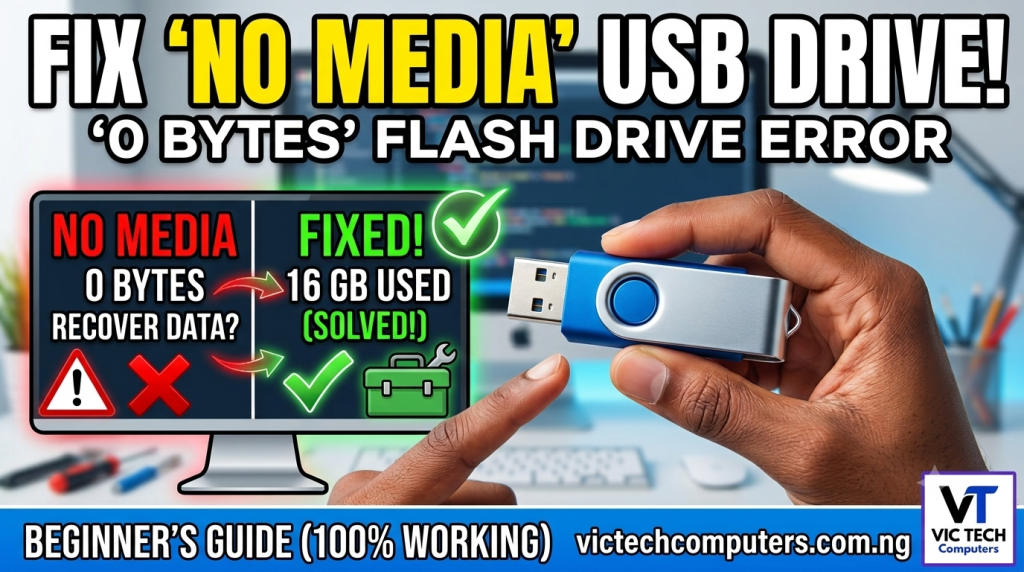
Have you plugged your USB flash drive or memory card into your computer, only to see a frustrating “No Media” error in Disk Management or “0 Bytes” in its properties? You can’t open it, you can’t format it, and it feels completely broken.
Don’t throw it in the trash just yet! This common issue happens when the software inside your USB (called the firmware) gets corrupted. The computer knows a device is plugged in, but it cannot talk to the storage chips.
In this beginner-friendly tutorial, I will show you exactly how to completely rebuild and flash fresh firmware onto your USB drive to bring it back to life.
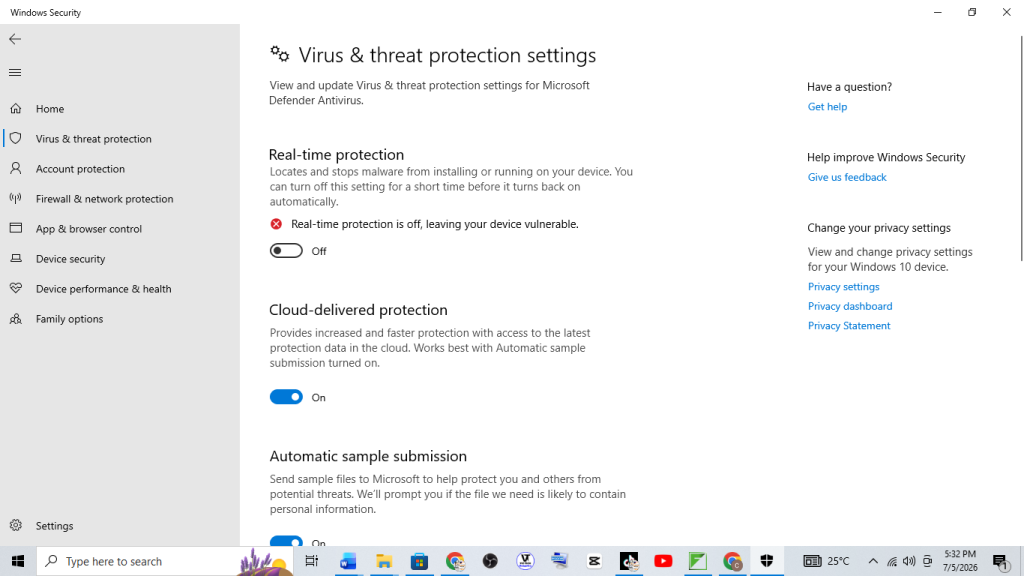
Step 1: Turn Off Your Antivirus (Temporary)
Because firmware flashing tools interact directly with the deep hardware components of your USB, Windows Defender or your antivirus will see them as a threat and block them. This is a false positive, so we must turn real-time protection off temporarily.
- Click on your Windows Start menu and search for Windows Security.
- Click on Virus & threat protection.
- Under Virus & threat protection settings, click Manage settings.
- Toggle Real-time protection to OFF.
Step 2: Download and Run ChipGenius
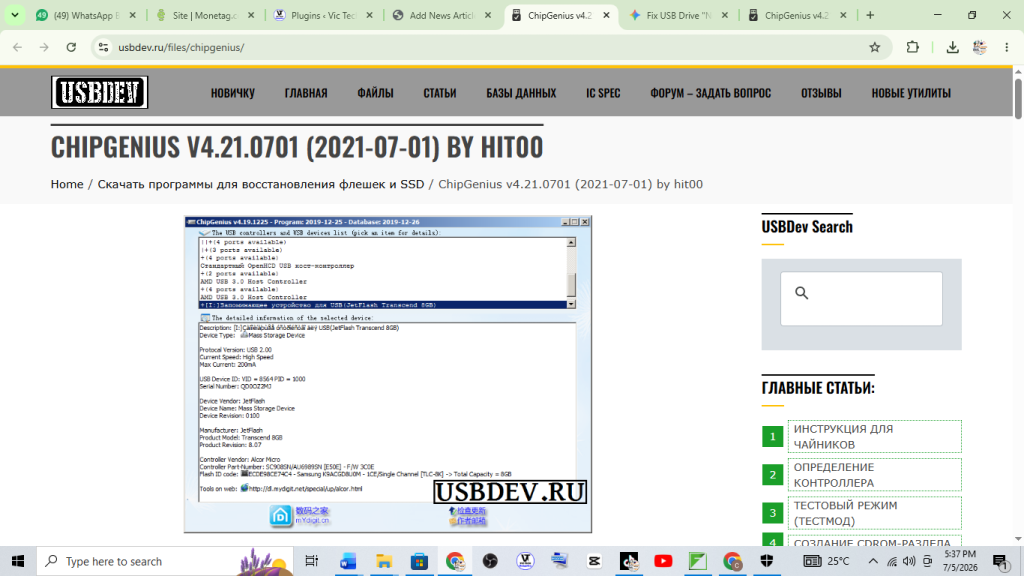
Every USB drive uses a specific internal chip called a “Controller.” We need to find out exactly who manufactured your USB’s controller so we can fetch the exact repair software for it. We use a free program called ChipGenius for this.
- Download the ChipGenius tool from the official repository here: https://www.usbdev.ru/files/chipgenius/
- If that link doesn’t work, use this backup mirror link: https://www.usbdev.ru/?wpfb_dl=10111
- Once downloaded, extract the zip folder (if it asks for a password, type
usbdev.ru). - Right-click on the ChipGenius application and select Run as Administrator.
- Look at the information window that pops up. Find the line that says Controller Vendor and write down the name (Common examples include FirstChip, Alcor, Silicon Motion, or ChipsBank).
Step 3: Download the Matching Firmware Flashing Tool
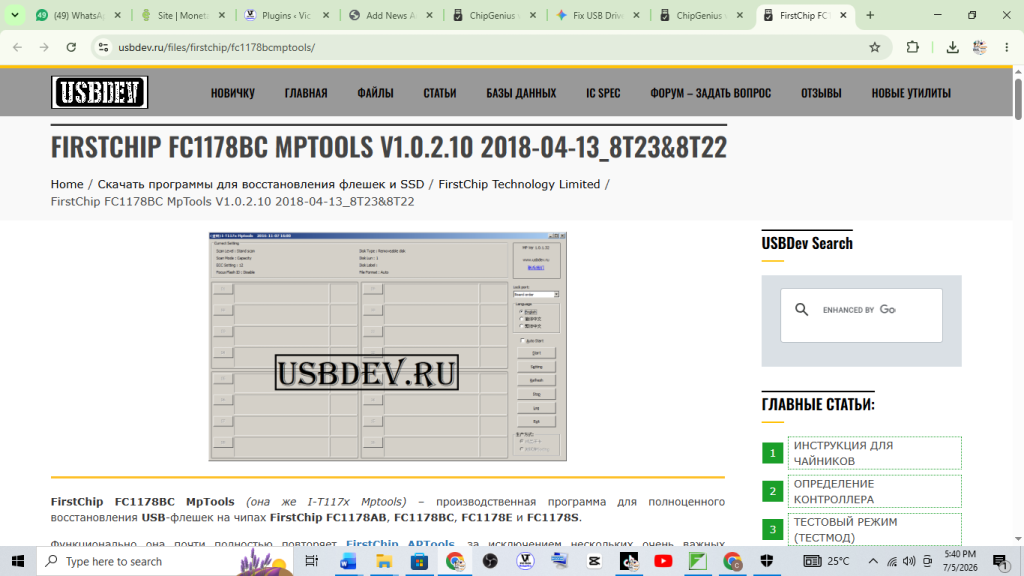
Now that you know your Controller Vendor, you need to download the official factory software (often called a Mass Production Tool or MPTool) to re-program the flash drive.
- Head over to the primary firmware database page to search for your vendor: https://www.usbdev.ru/files/firstchip/fc1178bcmptools/
- Alternatively, you can access the full mirror archive here: https://www.usbdev.ru/files/firstchip/fc1179mptools/
- Use the search bar on that website to search for the Controller Vendor you found in Step 2 (for example, type “FirstChip” or “Alcor”).
- Download the latest version of the mass production tool available for your specific chip.
Step 4: Flash the Fresh Firmware onto Your USB
Now we are going to force the new factory software into the USB drive to make it readable again.
- Extract the flashing tool folder you just downloaded in Step 3.
- Inside the folder, look for the main executive application (e.g.,
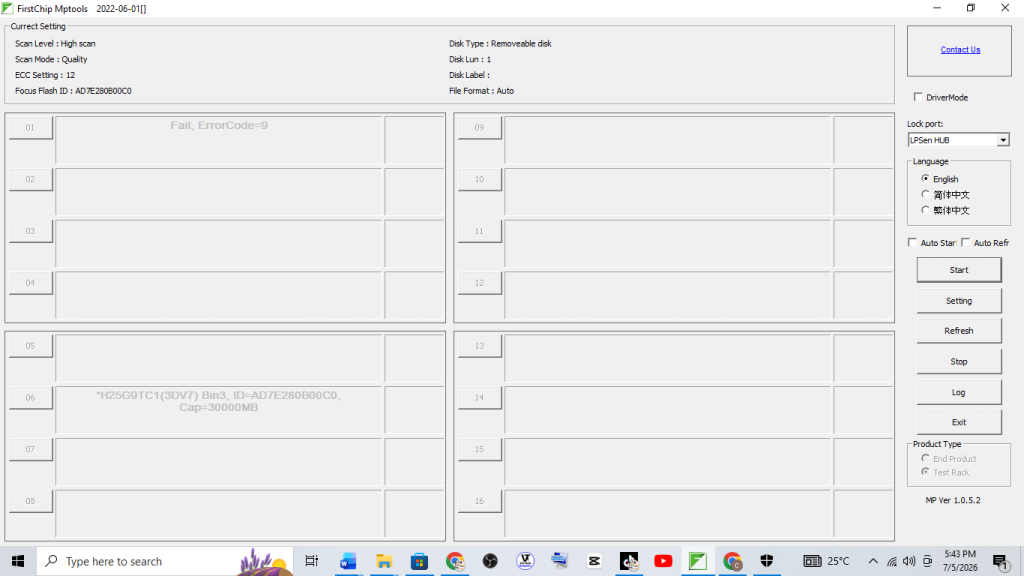
FCMPTools.exeorAlcorMP.exe). Right-click it and choose Run as Administrator. - Plug your broken USB drive into the computer. The software should automatically detect your drive in one of the blank boxes.
- Click the Start button on the right side of the tool.
- The tool will begin formatting and flashing the chip. Wait patiently. When it finishes successfully, the status box will turn green or show a success code like “1S” or “OK”.
Step 5: Format the Restored USB Drive
The firmware is fixed, but we need to give the drive a clean slate so Windows can read and write files normally.
- Open This PC or File Explorer on your computer.
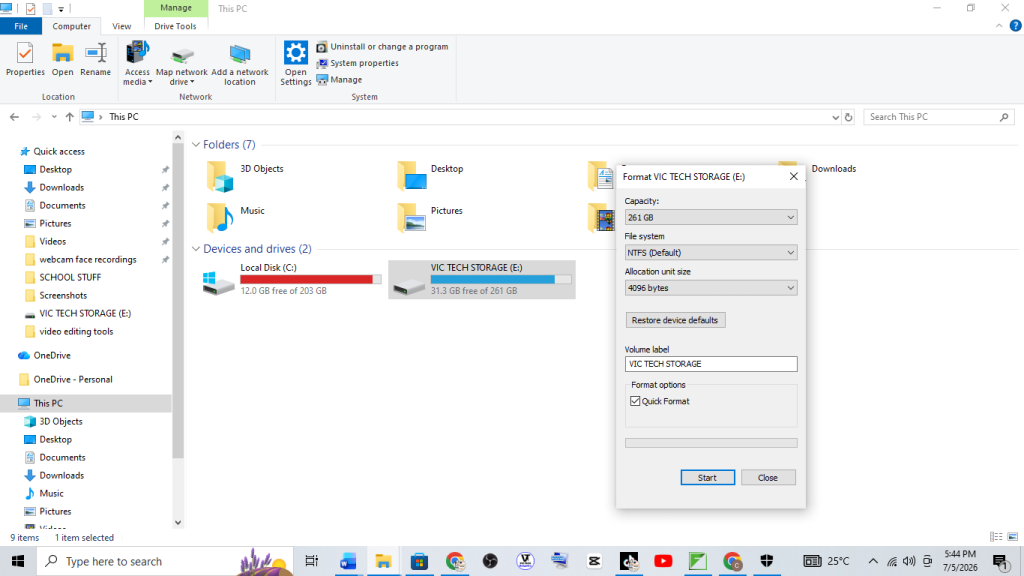
- Find your USB drive letter, right-click on it, and select Format.
- In the format window, click the Restore device defaults button.
- Click Start and let the configuration complete.
Final Verification
Unplug your USB flash drive from your computer, wait about 5 seconds, and plug it back in. You will notice that the “No Media” error is completely gone, and your computer now accurately displays the full storage space your drive is supposed to have!
If you ran into any issues or your controller isn’t showing up, leave a comment down below or drop a message on my channel, and I’ll help you troubleshoot!
Watch the Video Tutorial
If you prefer a visual walkthrough, you can watch exactly how I perform each of these steps in real time right here: